
Hello,
This is GPT Prompt Tester.
In the v0.9.8 update, the Prompt Analysis & Improvement (Eval) feature has been enhanced.
Previously, the Eval feature mainly focused on prompt structure analysis.
With this update, the analysis execution flow and result access experience have been improved, making it easier to test and refine prompts.
Key improvements include:
- Improved Prompt Analysis execution and analysis workflow
- Added analysis progress status indicators
- Stronger integration between execution history and Eval results
- Faster access to analysis results via P · R · I badges
In this article, we introduce the workflow and usage of the enhanced Prompt Analysis & Improvement features in v0.9.8.
How to Use Prompt Analysis / Improvement
After running a prompt in the GPT API Test / Prompt Playground,
click More menu (①) → Prompt Analysis / Improve (②) to open the Eval analysis panel (③).
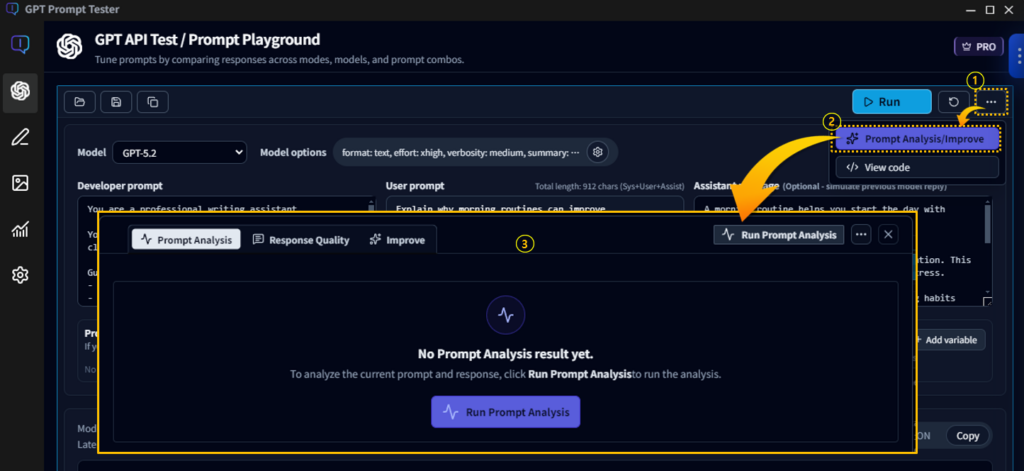
This panel is the Eval workspace, which analyzes prompts based on the executed prompt and model response.
At the top of the Eval panel, you will find the following three analysis tabs:
- Prompt Analysis
- Response Quality
- Improve
Each tab analyzes the prompt and response from a different perspective.
When the panel is opened for the first time, no analysis has been run yet, so the message
“No Prompt Analysis results yet.”
will appear.
Click Run Prompt Analysis to start analyzing the prompt and response.
Prompt Analysis Execution & Workflow
In the Eval panel, click Run Prompt Analysis (①) to begin analyzing the currently executed prompt and model response.
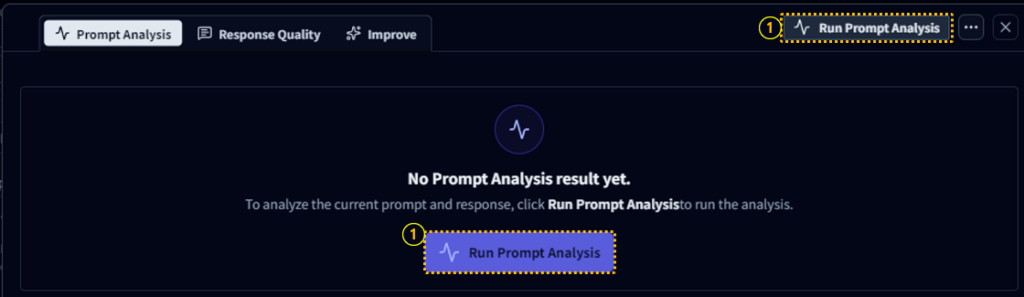
When the Eval panel is opened for the first time, the message
“No Prompt Analysis results yet.” will be displayed.
At this point, you can start the analysis by clicking Run Prompt Analysis (①) either:
- in the center of the panel, or
- at the top of the panel.
Analysis Progress Screen
When Prompt Analysis starts, the Eval panel displays the analysis progress screen.
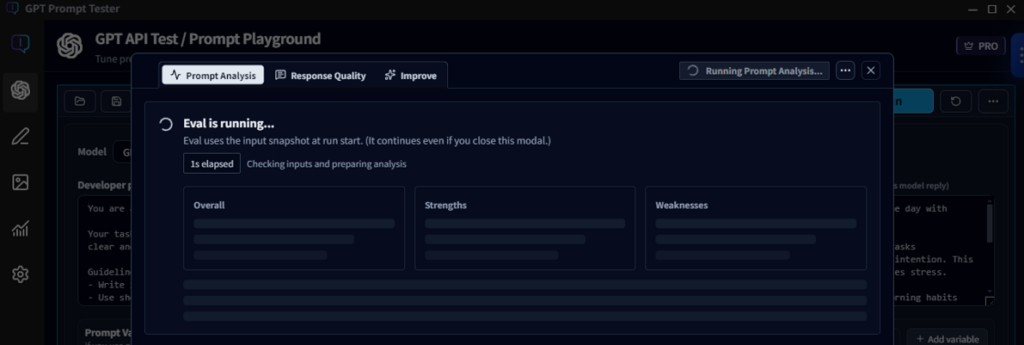
The time required to complete the analysis may vary depending on:
- the GPT model used
- the network environment
If the analysis takes longer than expected, you do not need to keep the Eval panel open.
Monitoring Analysis via History
You can close the panel while the analysis is running.
Even if the panel is closed, the analysis will continue in the background.
This allows you to continue working on other tasks while waiting for the analysis to complete.
The current analysis status can also be checked in the Execution History, where the running item will be displayed with the Analyzing status.
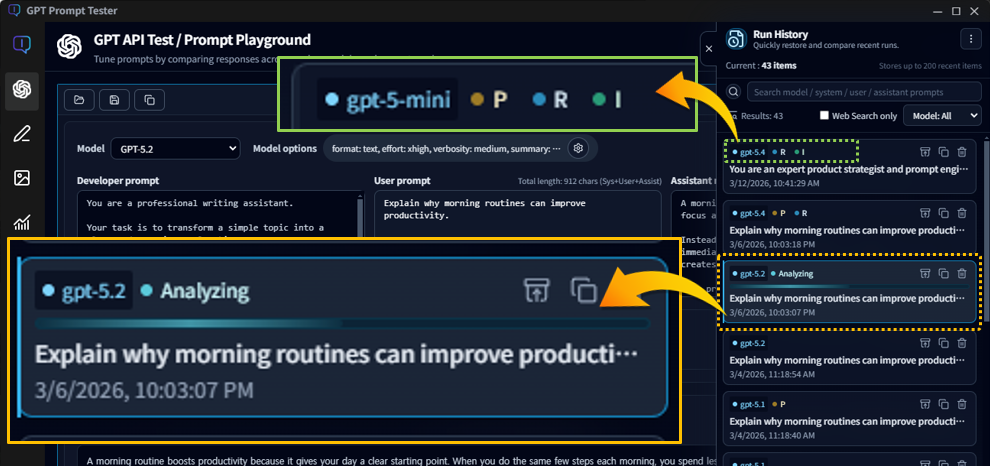
Each history item also displays P · R · I badges, indicating which Eval results are included in that execution.
Clicking a badge will:
- restore the corresponding history item to the active panel
- automatically open the Eval panel
- directly display the corresponding result tab
Prompt Analysis Tab
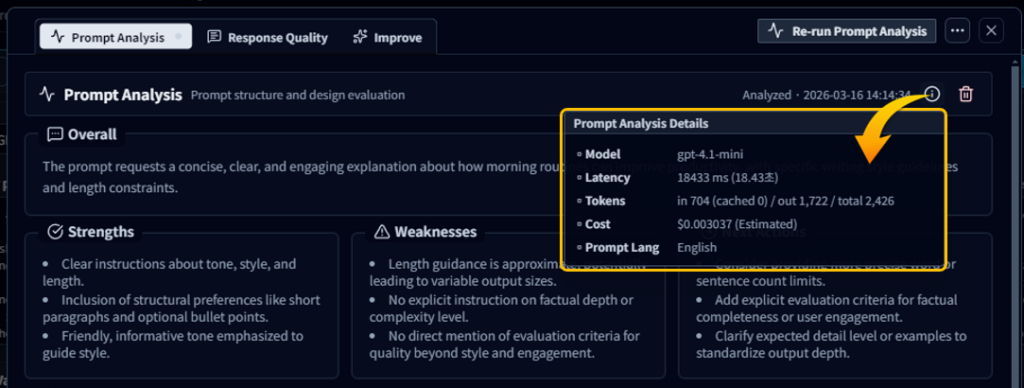
The Prompt Analysis tab analyzes the structure and design quality of the prompt.
The analysis results provide key insights including:
- Overall – a comprehensive analysis of the prompt structure
- Strengths – strong aspects of the prompt
- Weaknesses – areas that need improvement
- Next Actions – recommended next steps to improve the prompt
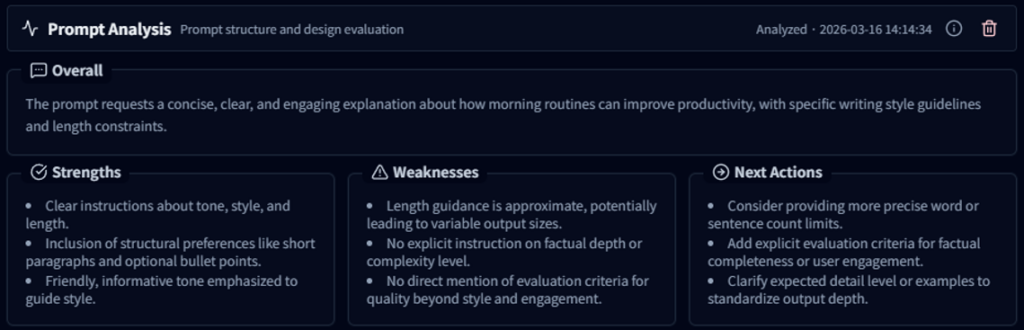
Detailed Analysis
In the Detailed Analysis section, various prompt engineering perspectives are evaluated, including:
- Shot Pattern
- Instruction Hierarchy
- Output Contract
- Task Decomposition
- Constraints Design
- Safety & Hallucination Mitigation
- Cost / Token Awareness
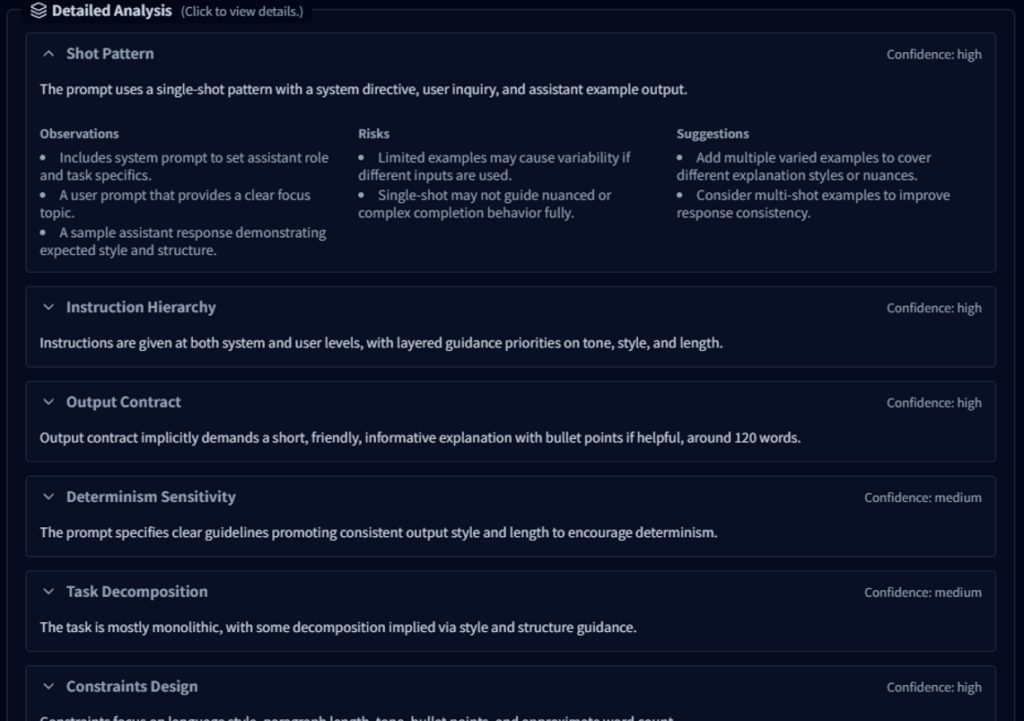
Each item analyzes the prompt structure and design quality from a prompt engineering perspective, helping users better understand how to improve their prompts.
The analysis results also include execution metadata such as:
- model used for analysis
- analysis latency
- token usage
- analysis cost
This allows users to review both the analysis results and the associated model usage details.
Response Quality · Improve Tabs
In addition to Prompt Analysis, the Eval panel also provides:
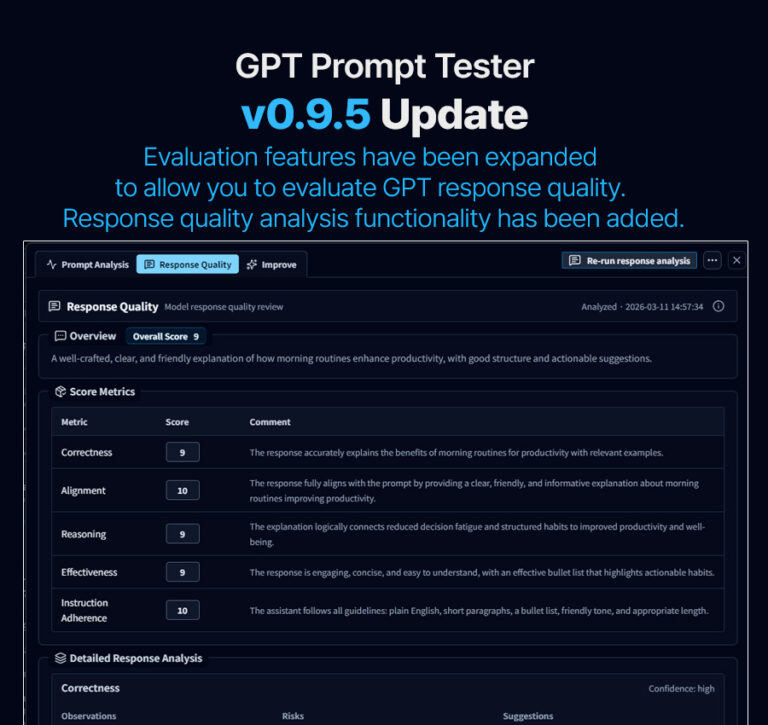
- Response Quality – analysis of model response quality
- Improve – prompt improvement suggestions
Each tab analyzes prompts and responses from different perspectives and provides insights to help refine prompts.
Detailed explanations of these features can be found in the Help Center.
The Prompt Analysis & Improvement (Eval) feature is not just for reviewing results.
It is designed to support a continuous workflow of:
Prompt Experiment → Analysis → Improvement → Re-run
In the v0.9.8 update, improvements to the analysis workflow and history integration make it easier to continue prompt testing and analysis seamlessly.
GPT Prompt Tester will continue improving features to help users perform prompt experimentation and analysis more efficiently.
Thank you