
Getting Started · From Installation to Your First Run
This guide is for first-time users of GPT Prompt Tester. Follow it step by step—from Windows installation → OpenAI API key setup → your first workflow (Playground/Writing/Image) → understanding Free vs Pro.
Last updated: 2026. 03. 05
Install & update on Windows
GPT Prompt Tester is currently available for Windows 10 / 11 (64-bit). We recommend installing via the Microsoft Store.
1-1. Before you install
- OS: Windows 10 or Windows 11 (64-bit recommended)
-
Internet connection: Required
(Always-on internet is assumed for license checks and OpenAI API calls.) - OpenAI account: If you don’t have one yet, create an account at OpenAI.
1-2. Install from Microsoft Store
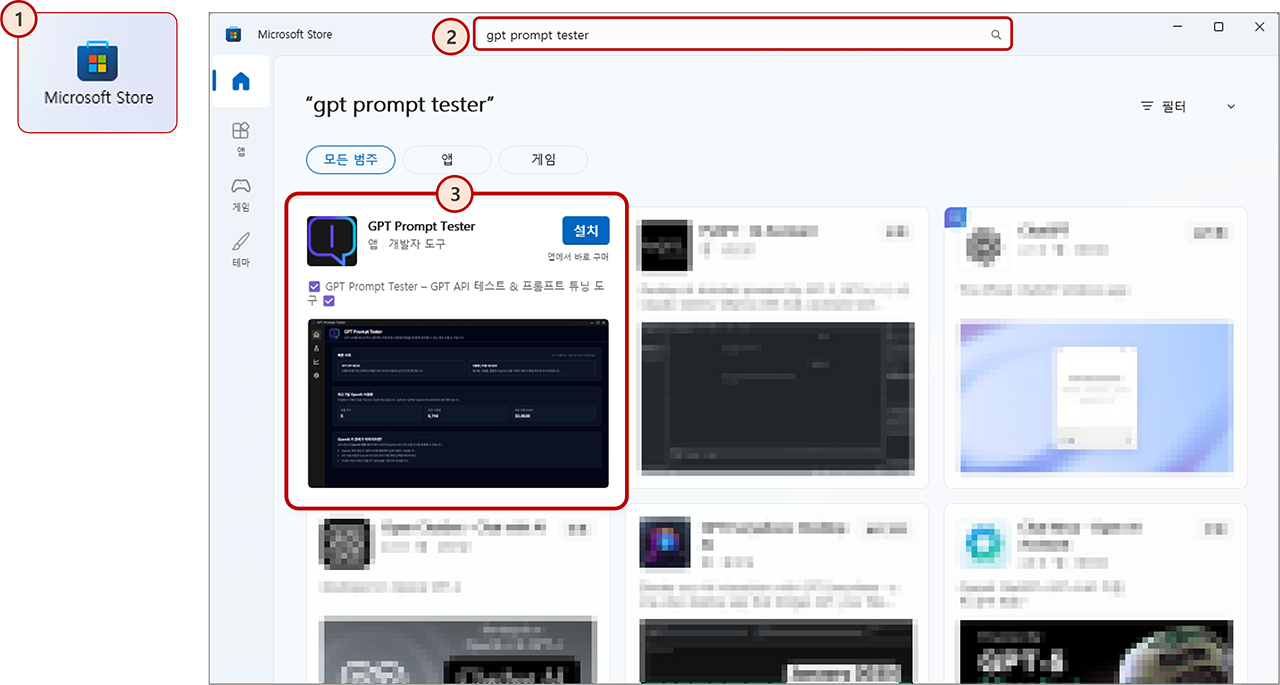
- Open the Microsoft Store app in Windows. (①)
- Search for “GPT Prompt Tester”. (②)
- In the results list, hover over GPT Prompt Tester and click Install. (③)
- Or click Install on the app detail page.
- After installation, launch GPT Prompt Tester from the Start menu or taskbar search.
1-3. How do updates work?
-
If installed via Microsoft Store
If Windows has App updates enabled, the app will update automatically when a new version is published.
You can also update manually from Microsoft Store: Library > Get updates.
macOS and Linux versions are planned for the future. When available, we’ll announce it via Updates and the Download page.
Connect your OpenAI account (API key setup)
GPT Prompt Tester runs using your own OpenAI API key.
The app does not include OpenAI credits—any usage is billed to your OpenAI account.
2-1. Create an OpenAI API key
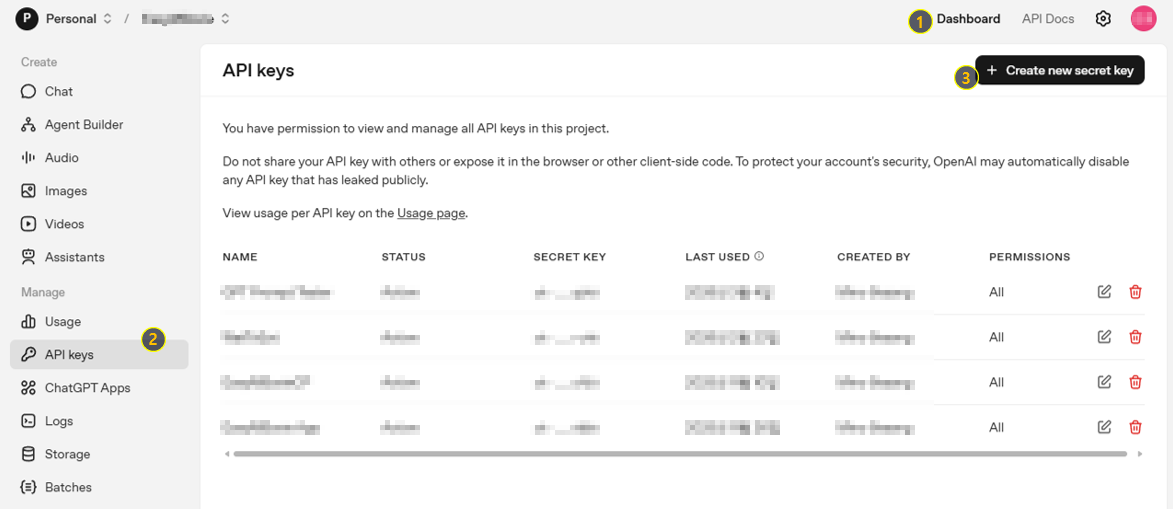
- Sign in to OpenAI Platform.
- Select Dashboard in the top menu (① in the example screenshot).
- In the left sidebar, select API Keys (② in the example screenshot).
- Click Create new secret key (③ in the example screenshot).
- Copy and store your key safely—once created, you can’t view it again.
2-2. Enter your key in GPT Prompt Tester
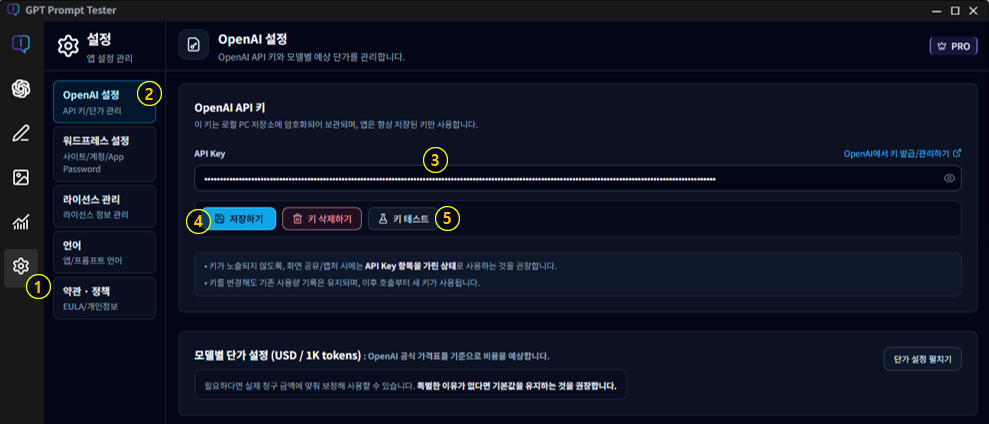
- Open GPT Prompt Tester and click [⚙️ Settings] in the left sidebar.
- In Settings, open OpenAI.
- Paste your key into the OpenAI API Key field.
- Click Save.
- Click [Test Key] to confirm the key works.
Your API key is encrypted and stored locally on your PC. If you move to a new PC, you’ll need to set it up again.
Start your first workflow (Playground / Writing Studio / Image Maker)
Now that installation and API key setup are done, it’s time to start your first workflow.
GPT Prompt Tester connects prompt testing (Playground) with writing (Writing Studio) and image generation (Image Maker) in one place.
3-1. Where should you start?
Playground
- Run prompts quickly and review outputs
- Test models/options (temperature, tokens, web_search, reasoning, etc.)
- Use variables for repeatable tests
- 👉 Best for prompt experiments & validation
Writing Studio
- Guided flow: topic → title → style → draft
- Edit & refine drafts, sentence rewrite
- Review publishing settings and upload to WordPress (if connected)
- 👉 Best for creating blog/docs drafts fast
Image Maker
- Generate images with prompts & manage results
- Keep a consistent tone with themes & style presets
- Pick the best results in Gallery/Compare
- 👉 Best for creating content images
Recommended routes
- New user: run 1–2 prompts in Playground to get comfortable
- Writing-first: jump into Writing Studio and generate a draft
- Image-first: start in Image Maker and choose a preset first
- 👉 Start anywhere, then connect workflows later.
3-2. First run in Playground (fastest start)
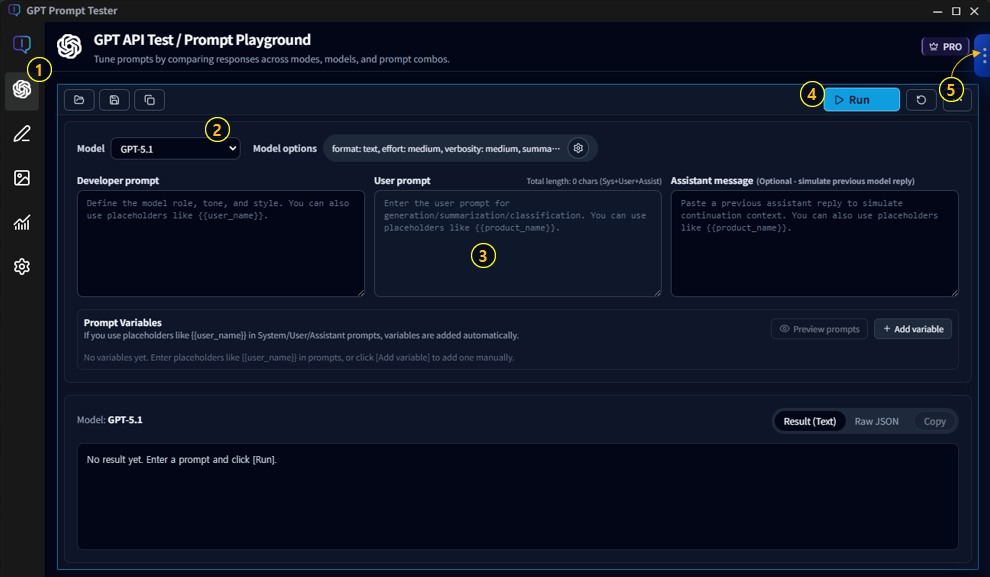
- Click Playground in the sidebar. (①)
- Select a Model and adjust Options if needed. (②)
- Type your Prompt (③), then click [▶ Run] (④).
- Your run is automatically saved in History. (⑤)
3-3. Create your first draft in Writing Studio
- Click Writing Studio in the sidebar. (①)
- Enter a Topic (②), then click [Start] (③) to generate and choose a title.
- Continue through the guided steps to generate a draft (type/style and structure included).
- Edit the draft, and apply sentence rewrite when needed.
- If WordPress is connected, review publishing settings and upload.
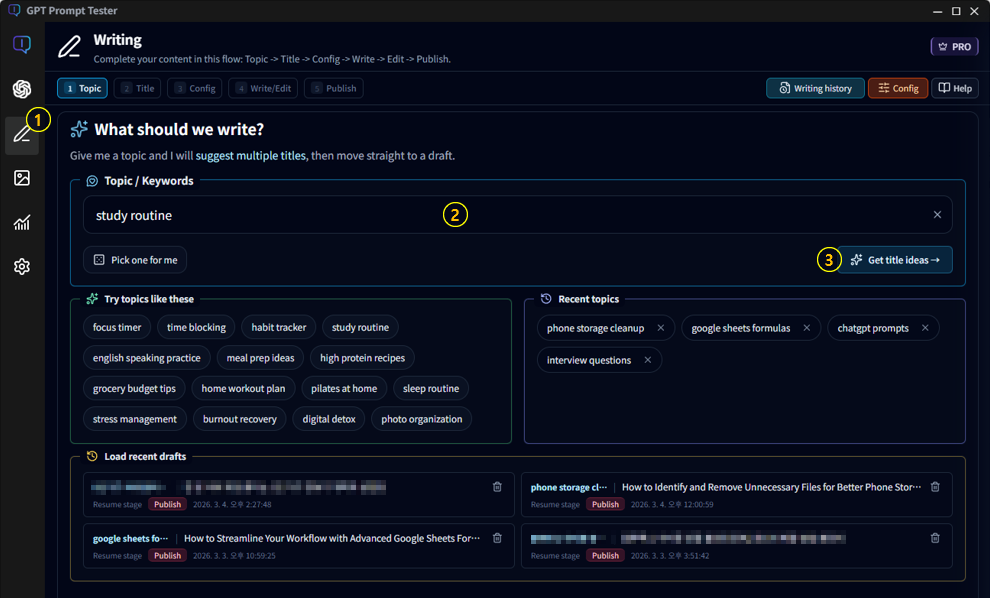
Writing Studio is a complete workflow from “idea → draft → edit → publish”. See the Writing Studio Guide for details.
3-4. Generate your first image in Image Maker
- Click Image Maker in the sidebar. (①)
- Select a theme (e.g., section image / remix / custom). (②)
- Enter a prompt or choose a style preset. (③)
- Click [Generate] (④), then manage results in Gallery/Compare.
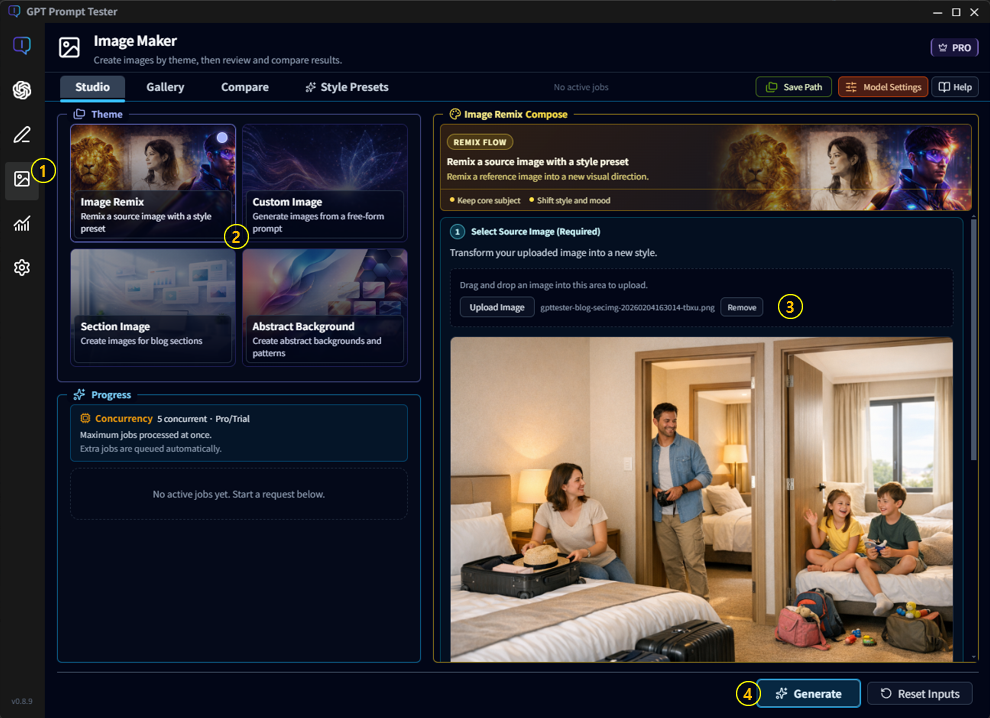
Image Maker is great for keeping a consistent look with style presets. See the Image Maker Guide for details.
Free vs Pro · What’s the difference?
With Free, you can run prompts in Playground and use the core features to get started.
As your work grows—and you start managing results across comparison, evaluation, templates, history, and usage—you’ll naturally benefit from Pro.
Free
- Playground with a single panel
- Model options, Web Search, Reasoning (basic usage)
- Variables & sample preview
- History up to 20 + restore runs to a panel
- Basic Usage summary (date range: cost/tokens/requests)
- 👉 Best for the “start experimenting” stage
Pro
- Multi-panel Playground (up to 10) for side-by-side comparison
- Template management (Project · Template · Version) + search/backup/restore
- Extended History (up to 200) + search/filters
- Evaluation / Improve + save Eval PDF
- Usage analytics by project/template (cost/latency/patterns)
- Export/import Usage (JSON/CSV)
- Writing Studio advanced (100 drafts, search/filters, rewrite, etc.)
- Image Maker expansion (more concurrent jobs/storage/history + Pro presets)
- 👉 Best for “measure, improve, and build reusable assets”
💡 Free is for “starting experiments.” Pro is for “turning good results into operational assets.”
Learn the full Pro workflow in the Pro Guide.
Pricing is available on the Pricing page.
For subscription, usage rules, and device changes, see the License Policy.
Frequently asked questions
Q1. Do I need to stay online to use the app?
Yes. GPT Prompt Tester assumes an always-on internet connection for license checks and OpenAI API calls. Most features won’t work offline.
Q2. How am I billed for OpenAI usage?
All API usage costs are billed to your OpenAI account. GPT Prompt Tester does not charge token fees—it simply helps you run and organize your work.
Q3. Can I use Pro again if I change PCs?
Yes. Rules for device changes and re-installation are covered in the License Policy.
Next, we recommend reading these guides in order: